Sales orders
Create, confirm and change orders; take payment; understand statuses.
Create an order
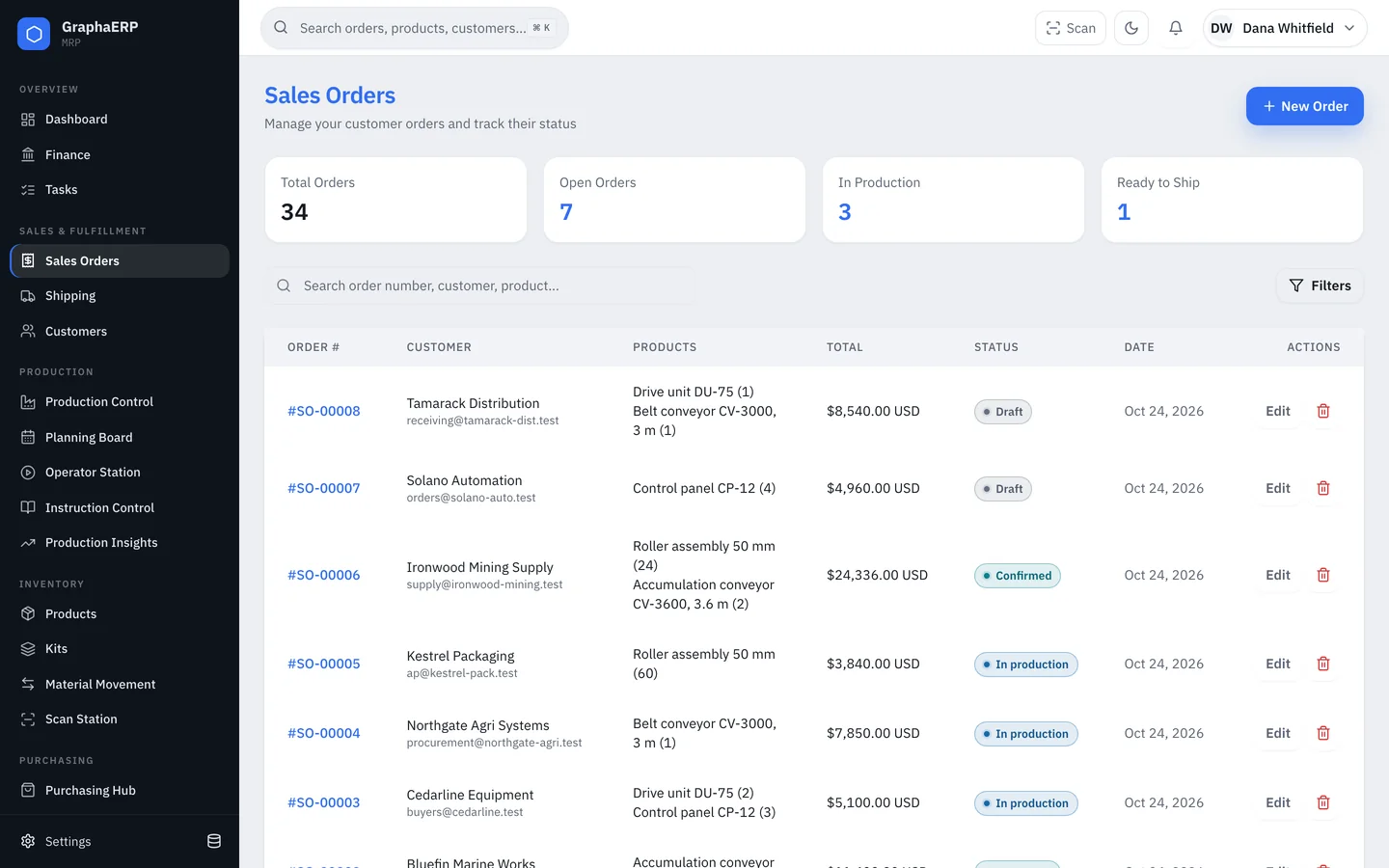
Open Sales Orders → New Order. Choose the customer, add items and quantities, and set the due date, shipping method and payment terms. Orders are numbered automatically (SO-00001, SO-00002, …) and keep the currency they are sold in.
Confirming
A new order starts as a draft or confirmed. Confirming makes it demand: the planner reserves stock by order date and plans work orders for what is missing. See How the planner works.
Statuses
| Status | Set by |
|---|---|
| Draft | You. Not yet demand. |
| Confirmed | You. Stock is reserved and work is planned. |
| In production | Production, when work orders for the order are running. |
| Ready to ship | Planning, when everything is available. |
| Partially shipped / Shipped | Shipping, as shipments go out. |
| Delivered | Shipping, when delivery is confirmed. |
| Cancelled | You. Reservations are released. |
Fulfillment statuses are earned through production and shipping — they can't be typed in — so the status always matches reality.
Changing a confirmed order
You can change items and quantities on a confirmed order until it has shipped or packing has started. Existing lines keep their identity, so reservations, work orders and shipments that point to them stay connected and the planner adjusts the rest.
Getting paid
With Stripe connected (Settings → Sales & payments), take a card payment, charge a saved card or send a Stripe invoice from the order. You can also mark an order paid manually with a reference such as a cheque or wire number.
Orders from your webstore
Webstores and other systems can create orders through the REST API, including discounts, shipping, tax lines and the original checkout currency.