Running jobs at the operator station
The queue, the guided wizard, timers, checks and labels.
Operator Station shows the operator's queue: work assigned to them, work available to claim and what they completed. The recommended next job is highlighted by priority and readiness.
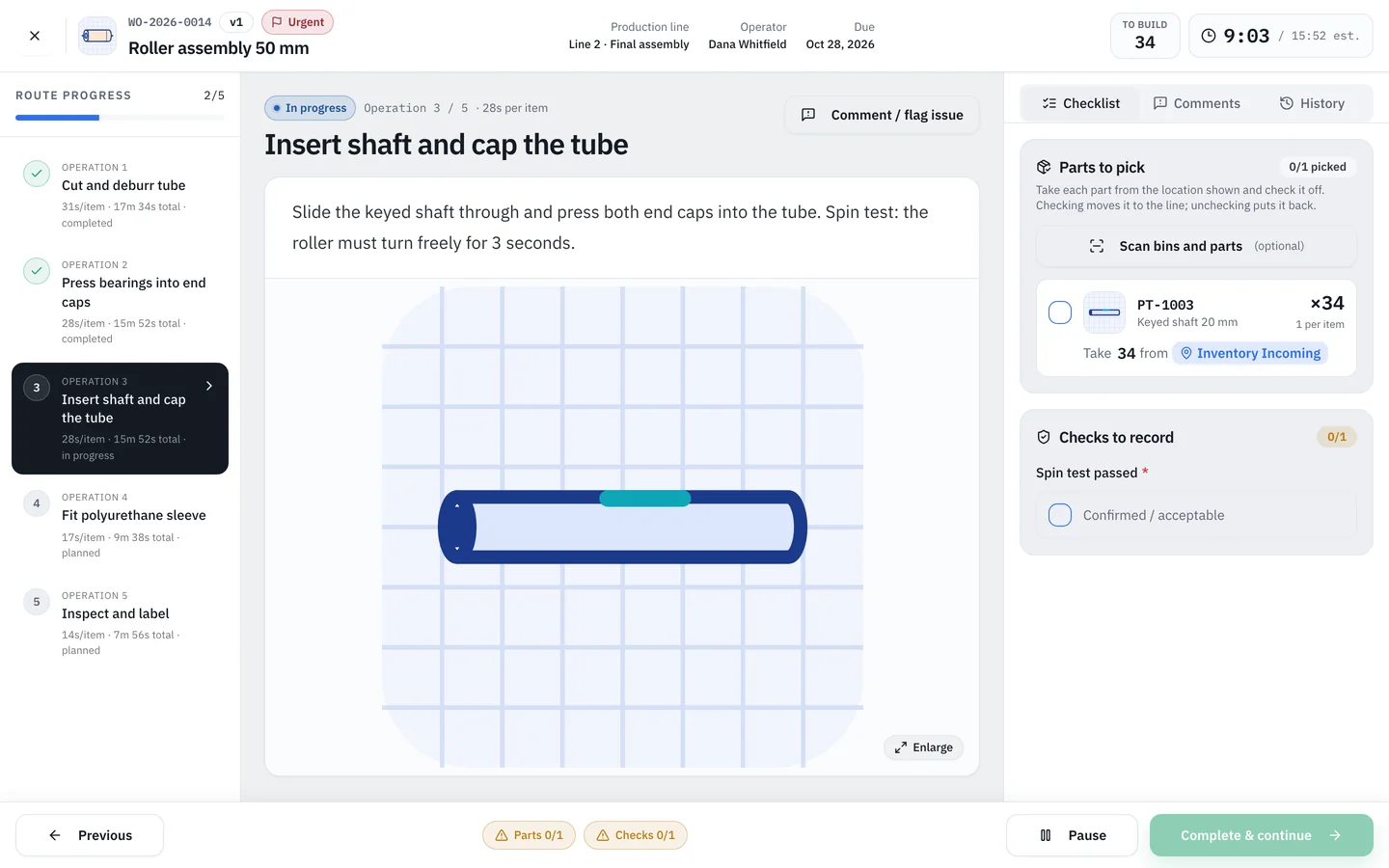
Inside a job
- Route progress — every operation with its time per item and status.
- The step — instructions and photo, sized to the screen; tap to enlarge.
- Parts to pick — each part with its location. Checking a part off moves it to the line; unchecking puts it back.
- Checks to record — required inputs must be filled before the step can be completed.
- Timer — elapsed time against the step's estimate for the job quantity.
- Footer — Print label, Pause, and Complete & continue are always visible.
Use Comment / flag issue to send feedback on a step — for example an unclear instruction or a wrong quantity. It shows up in Instruction Control and Production Insights.
Opening a job starts its execution and step timer. Use Pause for breaks so time stays accurate.
When the last step is complete, the operator sees where to drop off the finished work.